Installing the Papi payment provider for Odoo
The Papi module for Odoo integrates the Papi payment aggregator into your Odoo. It lets you accept Mobile Money (MVola, Orange Money, Airtel Money) and card payments in Madagascar, on your eCommerce website and on your invoices.
The module is available for Odoo 17.0, 18.0, 19.0 and 20.0 on the Odoo Apps Store, and as a direct download.
The screenshots below come from Odoo 19.0 in French. Menus are the same on the other versions, with small visual differences.
Prerequisites
| Item | Requirement |
|---|---|
| Odoo | 17.0, 18.0, 19.0 or 20.0 (one package per version). Tested on Community; Enterprise not tested |
| Hosting | Odoo.sh or self-hosted. Odoo Online (SaaS) is not supported: it does not allow third-party modules |
| Python | Standard Odoo dependencies only (requests) |
| Odoo apps | account_payment (installed automatically); website_sale for the eCommerce checkout; sale for quotations and sales orders |
| Currency | MGA (Ariary) enabled, with an MGA pricelist for the eCommerce. Minimum amount: 300 MGA |
| Public URL | web.base.url set to your public HTTPS address, so Papi can reach /payment/papi/webhook. Behind a reverse proxy: proxy_mode = True |
| Network | Inbound HTTPS to the webhook (no IP filtering); outbound HTTPS (443) to app.papi.mg |
| Papi account | A verified Papi shop with its API key and notification signing secret (sign up) |
Get the module
Choose the version that matches your Odoo:
| Odoo version | Odoo Apps Store | Direct download |
|---|---|---|
| 20.0 | Apps Store | payment_papi-20.0.zip |
| 19.0 | Apps Store | payment_papi-19.0.zip |
| 18.0 | Apps Store | payment_papi-18.0.zip |
| 17.0 | Apps Store | payment_papi-17.0.zip |
The package contains two modules: payment_papi and payment_papi_sale. The second one adds the "Pay with Papi" button on sales orders and is installed automatically when the Sales app is installed. See Downloads to verify the file with its SHA-256 checksum.
Install the module
Self-hosted Odoo
-
Unzip the package and copy the two folders
payment_papiandpayment_papi_saleinto an add-ons directory, for example/opt/odoo/custom_addons/. -
Add this directory to
addons_pathin your Odoo configuration file:addons_path = /opt/odoo/odoo/addons,/opt/odoo/addons,/opt/odoo/custom_addons -
Restart the Odoo service.
-
In Odoo, open Apps → Update Apps List, search for Papi and click Activate (or Install). From the command line, the equivalent is:
odoo-bin -c odoo.conf -d <database> -i payment_papi --stop-after-init
Odoo.sh
- Add the
payment_papiandpayment_papi_salefolders to the Git repository of your project. - Push the branch: Odoo.sh detects the modules automatically.
- Install the module from Apps on a staging branch, test it, then merge into production.
Odoo.sh staging and development databases are neutralized: the API key and the secret are erased. Enter the credentials of a test Papi shop in these databases if you need to try the module.
Configure Papi in Odoo
1. Open the payment providers
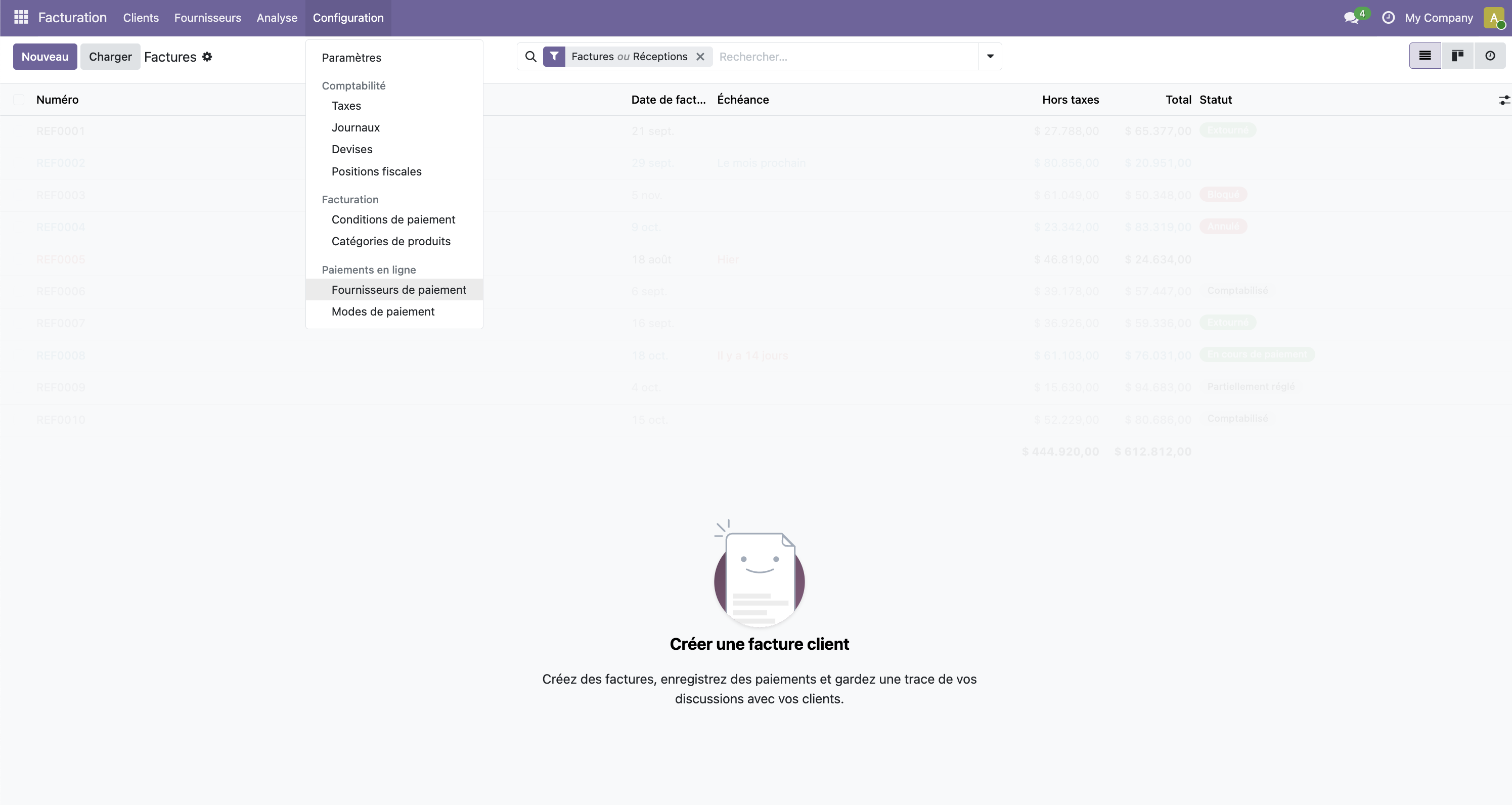
In the Invoicing app, open Configuration → Online Payments → Payment Providers. The same menu gives access to Currencies, which you need in step 5.
2. Find Papi
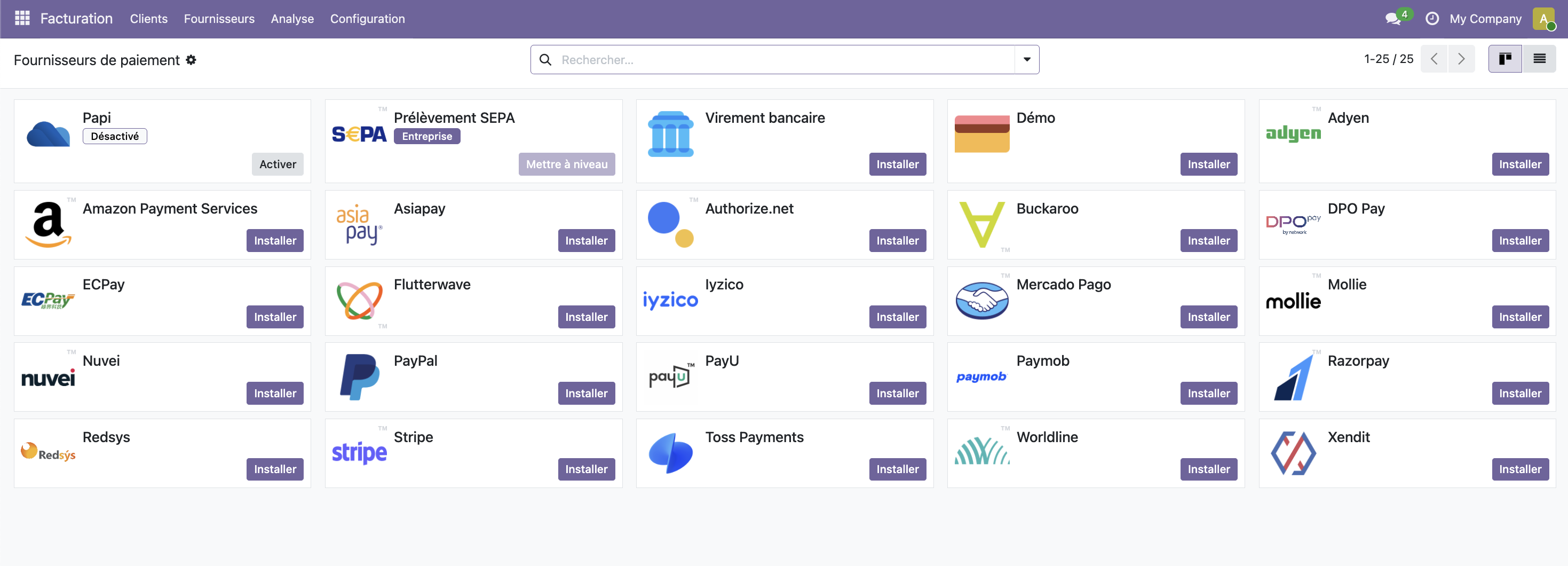
Once the module is installed, Papi is the first card of the list, with the Disabled badge. Click it to open the provider form. The other providers are standard Odoo providers and are not needed to use Papi.
3. Enter your Papi credentials
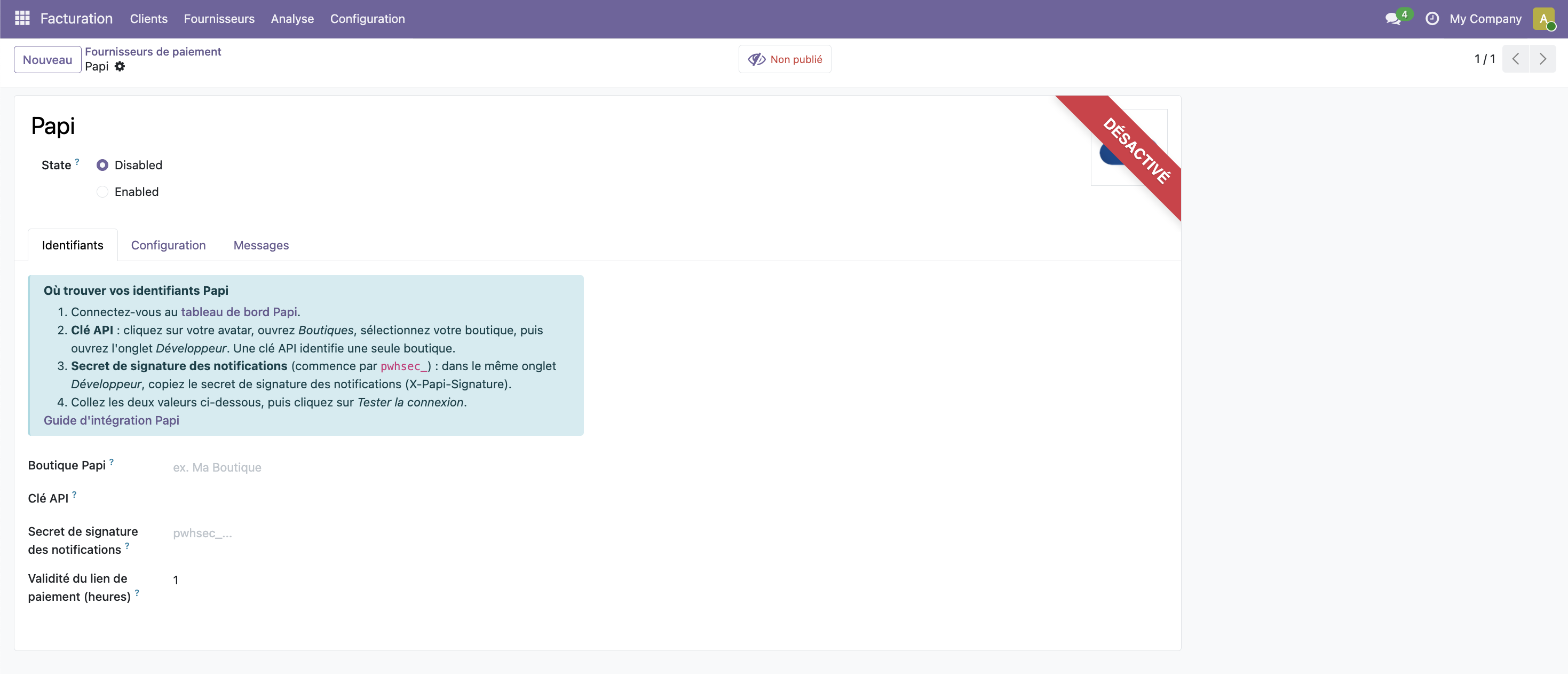
On the Credentials tab, fill in the values from your Papi dashboard (avatar → Shops → your shop → Developer tab):
| Field | Value |
|---|---|
| Papi shop | The name of your shop, for your own reference |
| API key | The API key of the shop (one key = one shop) |
| Notification signing secret | The pwhsec_… secret used to verify the X-Papi-Signature header |
| Payment link validity (hours) | From 1 to 596 hours, 1 hour by default. After that, the transaction is cancelled |
These two values are confidential: they are only visible to Odoo administrators and are never written to the logs.
4. Test the connection and enable
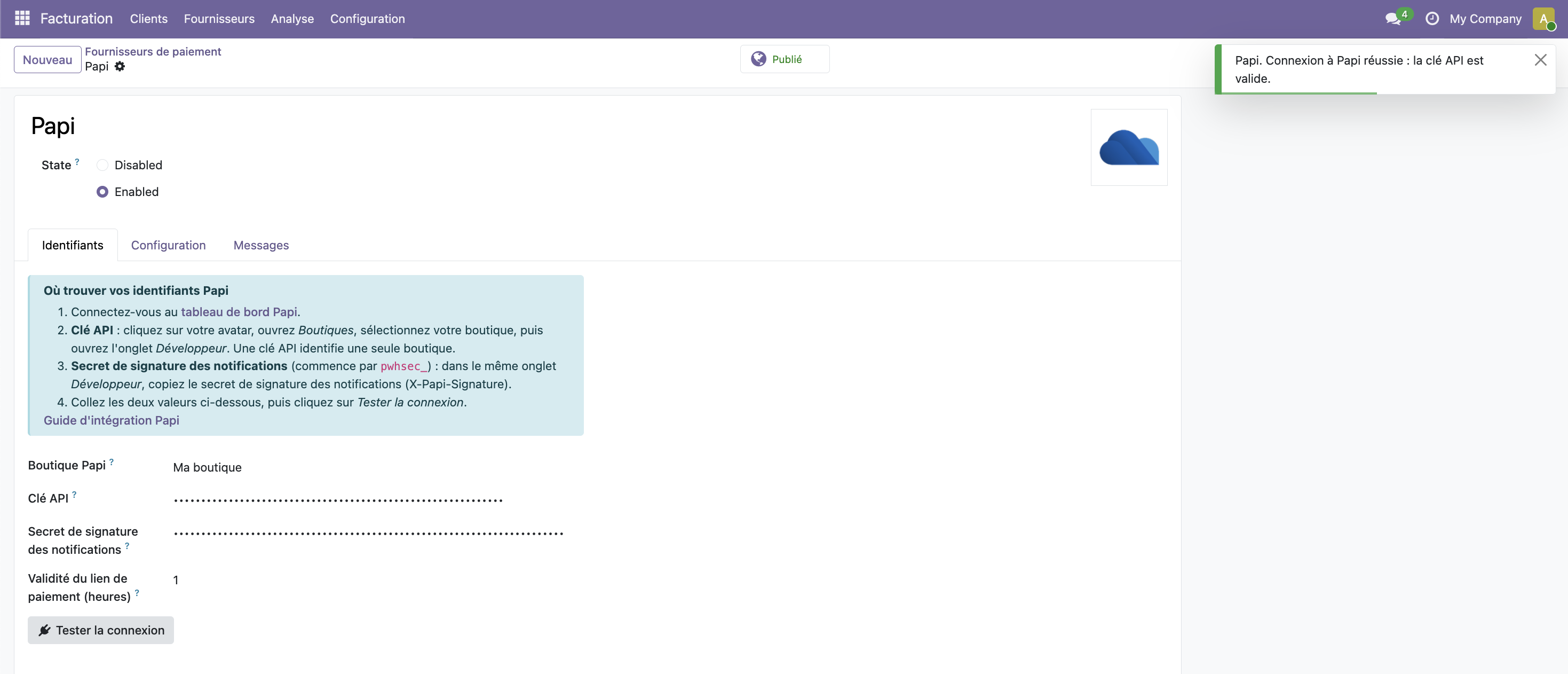
Click Test the Connection. A green message confirms that Papi accepts your API key. Then set the State to Enabled: the ribbon disappears and the provider is published on the website. Papi is now offered at checkout and on invoices.
On the Configuration tab, you can also choose the payment journal in which Odoo records the Papi payments (a Bank journal), used for reconciliation. Countries and currencies are preset to Madagascar and MGA.
Papi has no sandbox for Odoo: Mobile Money payments are real. To try the module without moving money, enable the Test Mode of your shop in the Papi dashboard and use the test card described in the sandbox environment.
5. Enable the MGA currency
Papi only works in MGA (Malagasy ariary). Open Configuration → Accounting → Currencies and make sure the Active toggle is on for MGA. For the eCommerce, also create an MGA pricelist.
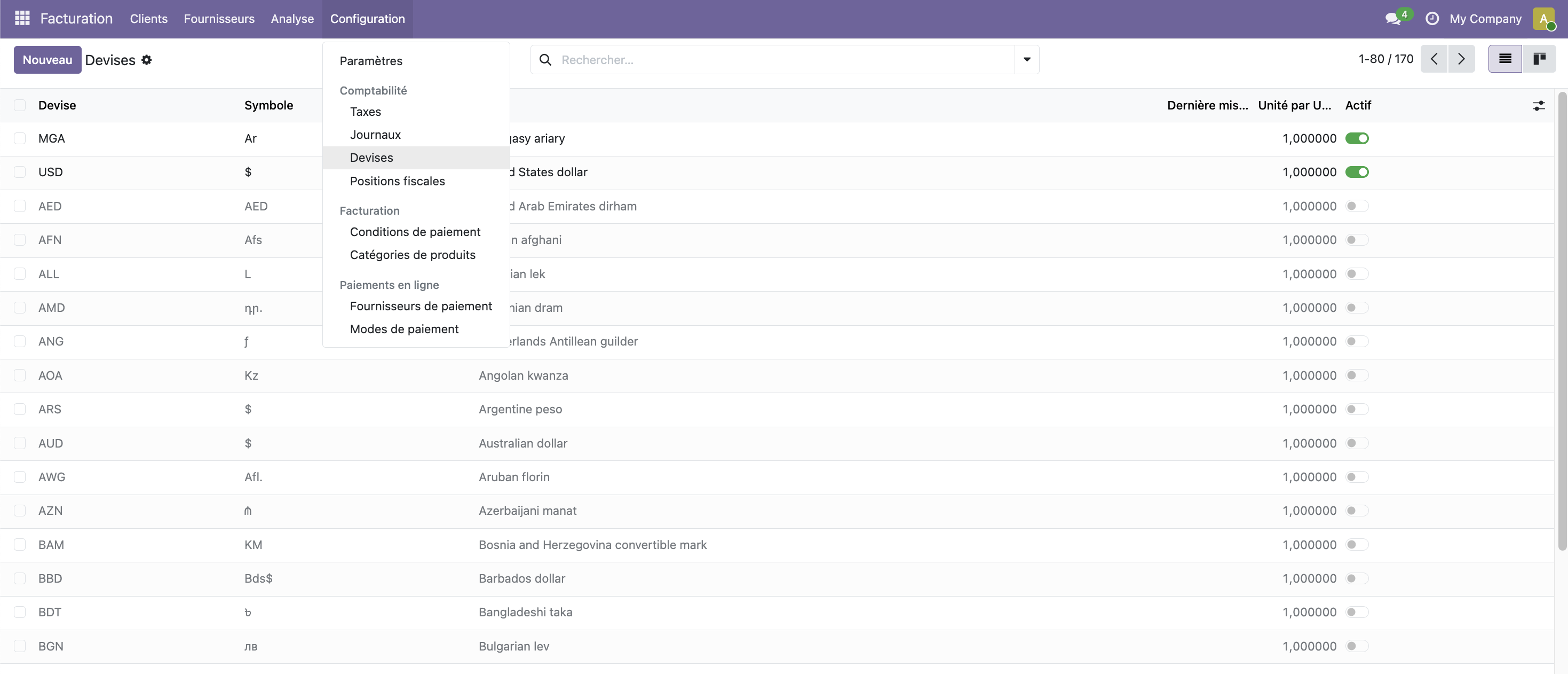
If MGA is not active, Papi is not offered and payments will not work.
What your customer sees
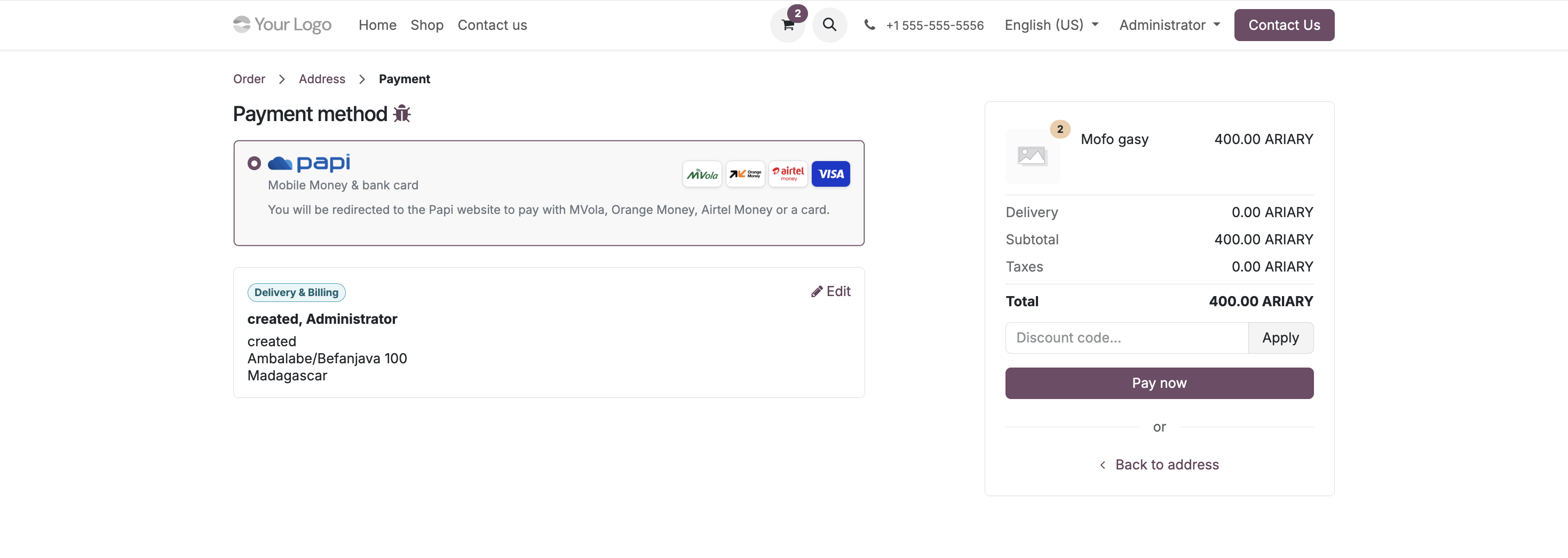
At the Payment step of the checkout, Papi is listed as Mobile Money & bank card, with the logos of MVola, Orange Money, Airtel Money and Visa. The customer clicks Pay now, is redirected to the secure Papi page, chooses the payment method there, then comes back to your website. The order is confirmed automatically once Papi has confirmed the payment.
Pay with Papi from the back-office
An operator can collect a payment on behalf of a customer (at the counter, by phone…):
- Open a posted invoice or a quotation / sales order in MGA, then click Pay with Papi. The button only appears if Papi is enabled and the amount is at least 300 MGA.
- In the wizard, check the amount and enter the payer's mobile phone number.
- Click Open Papi Payment Page. The customer pays with MVola, Orange Money, Airtel Money or a card.
- The payment is confirmed like an online payment: the invoice becomes Paid, or the order is confirmed.
Notifications (webhook)
Papi notifies Odoo of each payment result on https://<your-domain>/payment/papi/webhook. Nothing needs to be configured in the Papi dashboard: Odoo sends the URL with every payment link.
- Check that the system parameter
web.base.urlcontains your public HTTPS address. - Notifications are signed (
X-Papi-Signature, HMAC-SHA256) and protected against replay. - The payment status is always re-checked with the Papi API: a customer return is never treated as proof of payment.
- Processing is idempotent: receiving the same notification twice never confirms an order twice.
- A scheduled action, Papi: synchronize pending transactions, catches up lost notifications and expired payment links. It is active by default.
- Behind Nginx or Apache, forward the body unmodified and keep the
X-Papi-Signatureheader. Do not filter by IP address: Papi does not publish an IP range.
See Securing notifications for the signature details.
What is covered
| Scenario | Supported |
|---|---|
eCommerce checkout (website_sale) | Yes |
| Invoices paid from the customer portal | Yes |
| Online quotations and standard payment links | Yes |
| "Pay with Papi" button for back-office operators | Yes |
| Multi-company and multi-website | Yes |
| Odoo Online (SaaS) | No: third-party modules cannot be installed |
| Point of Sale, subscriptions, refunds from Odoo, saved cards | Not in this version |
Update and uninstall
To update to a new version of the module:
odoo-bin -c odoo.conf -d <database> -u payment_papi --stop-after-init
Your configuration (key, secret, shop) is kept. Uninstalling the module sets the Papi provider back to disabled; existing transactions and their Papi references remain visible in Odoo.
Support
Need help? Write to support@papi.mg or see the Support page.