3. Integrate Papi to your web application
Integrate Papi into your application, including handling payment flows, notifications, and environment‑specific settings.
Environments
Papi provides a single production endpoint. For testing, use the test mode flags described below.
- Create a payment link (live transactions):
https://app.papi.mg/engine/api/payment-links - Read a payment link back:
https://app.papi.mg/engine/api/payment-links/{merchantPaymentReference}(see Reading a payment link back)
https://app.papi.mg/dashboard/api/payment-links is legacy, still accepted for existing integrations; use the engine URL for new ones.
Payment Flow Overview
The payment process consists of the following steps:
- Get your API Key from the dashboard.
- Create a payment link: Send an API request to generate a unique payment link for the customer.
- Redirect the customer: Use the returned
paymentLinkto send the customer to the secure payment page. - Process the payment: The customer completes the payment on the secure page.
- Receive a notification: After the payment, Papi calls your
notificationUrlwith the final status. - Verify and handle the result: Verify the
X-Papi-Signatureheader first, then check thenotificationTokenandmerchantPaymentReference, and update your application. See Securing notifications (callbacks).
Step‑by‑Step Guide to Implementing Payment Integration
This guide walks you through integrating the payment API step by step, from setting up redirection pages to handling notifications.
You need two pages on your website where customers will be sent after payment:
- Success URL – The page shown after a successful payment (e.g., order confirmation).
- Failure URL – The page shown after a failed payment (e.g., an error message with a retry option).
Take note of both URLs – you will need them when creating the payment link.
The notification endpoint is a callback URL you implement to receive automatic status updates from Papi. It must accept POST requests.
Why http://localhost:… does not work. Papi calls your notificationUrl from its own servers, over the public Internet. localhost (like 127.0.0.1 or a private IP such as 192.168.x.x) refers to the machine making the call: from Papi's servers, that address does not point to your computer. The notification will never reach you.
Expose your local port temporarily. Use a tunnel that publishes a public HTTPS URL forwarding to your local server, for example:
# ngrok — expose local port 3000
ngrok http 3000

# Cloudflare Tunnel — equivalent
cloudflared tunnel --url http://localhost:3000
The tool prints a public URL, for example https://abcd-1234.ngrok-free.app.
Build the public notificationUrl. Concatenate the tunnel URL and your endpoint path:
https://abcd-1234.ngrok-free.app/api/papi/notification
Send this value (not http://localhost:3000/api/papi/notification) in the notificationUrl field when creating the payment link.
The tunnel URL is temporary. On most free plans it changes every time you restart the tunnel (and expires after a period of inactivity). After a restart, take the new URL and create a new payment link with the updated notificationUrl — links already created still point at the old, now dead address.
Observe the incoming request and test both cases. Log the received POST body at the very start of your handler, before any processing. Tunnels also provide a request inspector (ngrok: http://127.0.0.1:4040) showing headers, body and response code, and letting you replay a request without redoing a payment. Then test:
- Success: complete a payment and confirm you receive a
paymentStatusofSUCCESS. - Failure: cancel the payment or let the link expire (short
validDuration) to receiveFAILED, and confirm your code does not mark the order as paid.
Minimum precautions
- Use the tunnel's HTTPS URL, never the
http://one. - Always verify the
X-Papi-Signatureheader, thennotificationTokenandmerchantPaymentReference, before updating your data — the tunnel URL is public and anyone can post to it. See Securing notifications (callbacks). - Never put your API key in the notification URL (or in a query string): it would show up in tunnel and intermediate server logs.
- Stop the tunnel as soon as the test is over: while it runs, your local server is reachable from the Internet.
Example notification body sent by Papi
{
  "paymentStatus": "SUCCESS",
  "paymentMethod": "MVOLA",
  "currency": "MGA",
  "amount": 15000,
  "fee": 500,
  "clientName": "Client Name",
  "description": "Payment for Order #123",
  "merchantPaymentReference": "ORDER-123",
  "paymentReference": "c1f4a5b0-6f5e-4e1b-9f0e-2b7d8a9c3d21",
  "notificationToken": "xyz789",
  "message": "Payment completed successfully.",
  "payerEmail": "customer@example.com",
  "payerPhone": "+261340000000"
}
Explanation of notification fields
| Field | Type | Description |
|---|---|---|
paymentStatus | string | SUCCESS, PENDING, or FAILED. |
paymentMethod | string | The method used (MVOLA, AIRTEL_MONEY, ORANGE_MONEY, BRED). |
currency | string | Currency code (always MGA). |
displayCurrency | string | The currency the payer saw on the form (always MGA today). |
amount | integer | Amount paid. |
estimatedAmount | integer | The amount expressed in displayCurrency (equal to amount while only MGA is supported). |
fee | integer | Transaction fee deducted. |
clientName | string | Customer's name as provided. |
description | string | The payment description you sent. |
merchantPaymentReference | string | Your reference for this payment — the reference you sent when creating the link. |
paymentReference | string | Papi's reference for this payment (a UUID). It is returned as papiPaymentReference when you read the link back. |
notificationToken | string | Token returned when you created the payment link – use it as an additional authenticity check, after the signature. |
message | string | Additional human‑readable information. |
payerEmail | string | Customer's email (if provided). |
payerPhone | string | Customer's phone number (if provided). |
Verifying the notification
Papi signs every notification it sends to your notificationUrl. Before you update your data:
- Verify the signature in the
X-Papi-Signatureheader, with the signing secret of your application. - Check that
merchantPaymentReferenceandnotificationTokenmatch the values of your payment link.
See Securing notifications (callbacks) for the headers, the signing secret, how the signature is built, code examples (Node.js, PHP, Python, Java), a test vector, and best practices to secure your endpoint.
A notification is sent once. If your endpoint was down or the call was lost, do not leave the order in limbo: read the payment link back with GET /engine/api/payment-links/{merchantPaymentReference} (see Reading a payment link back) and use the paymentStatus it returns. You can also resend the notification from the dashboard: see Failed notifications.
You will send a POST request to generate a payment link.
The body must include the URLs you created in Steps 1 and 2, along with payment details.
Endpoint
POST https://app.papi.mg/engine/api/payment-links
Headers
{
  "Content-Type": "application/json",
  "Token": "<YOUR_API_KEY>"
}
Request body example
{
  "amount": 15000.0,
  "clientName": "Client Name",
  "reference": "ORDER-123",
  "description": "Payment for Order #123",
  "successUrl": "https://yourapp.com/payment-success",
  "failureUrl": "https://yourapp.com/payment-failure",
  "notificationUrl": "https://yourapp.com/payment-notify",
  "validDuration": 60,
  "provider": "MVOLA",
  "payerEmail": "customer@example.com",
  "payerPhone": "+261340000000",
  "testReason": "Internal QA",
  "isTestMode": false
}
Request fields explained
| Field | Type | Required | Description |
|---|---|---|---|
clientName | string | ✓ | Customer's name. |
amount | number | ✓ | Payment amount (minimum 300). |
reference | string | ✓ | Your unique identifier for this payment (e.g., order ID). |
description | string | ✓ | Short description (max 255 chars). |
successUrl | string | ✗ | URL for redirection after success (must be http(s)://). |
failureUrl | string | ✗ | URL for redirection after failure (must be http(s)://). |
notificationUrl | string | ✗ | Your endpoint that receives payment notifications (http(s)://). Strongly recommended; without it, read the outcome back with the GET below. |
validDuration | integer | ✗ | Link validity in hours (default: 1, must be > 0). |
provider | string | ✗ | Restrict to one provider: MVOLA, AIRTEL_MONEY, ORANGE_MONEY, BRED. |
payerEmail | string | ✗ | Customer's email address. |
payerPhone | string | ✗ | Customer's phone number. |
testReason | string | ✗ | Reason for using test mode (appears in dashboard). |
isTestMode | boolean | ✗ | Set to true to enable test mode (see "Test Mode" section below). |
All fields, validation rules, error codes and examples: Payment link creation API.
Make the request with the body and headers from Step 3.
If successful, you receive a response like this:
{
  "data": {
    "amount": 15000.0,
    "currency": "MGA",
    "linkCreationDateTime": 1788065989011,
    "linkExpirationDateTime": 1788281989011,
    "paymentLink": "https://payment-form.papi.mg/yourshop/payments/eyJhbGciOiJIUzI1NiJ9.eyJzdWIiOiJDbGllbnQgTmFtZSIsImV4cCI6MTc4ODI4MTk4OX0.Yx8kQ0rN2mVvL5tJ7pF3cHqA9sWbZ1dE4gT6uK0nX2Y",
    "clientName": "Client Name",
    "paymentReference": "ORDER-123",
    "description": "Payment for Order #123",
    "successUrl": "https://yourapp.com/payment-success",
    "failureUrl": "https://yourapp.com/payment-failure",
    "notificationUrl": "https://yourapp.com/payment-notify",
    "payerEmail": "customer@example.com",
    "payerPhone": "+261340000000",
    "notificationToken": "xyz789",
    "testReason": "Internal QA",
    "isTestMode": false
  }
}
Important response fields
| Field | Description |
|---|---|
paymentLink | The URL where the customer must be redirected to pay. Its shape is https://payment-form.papi.mg/<your-application-code>/payments/<jwt>, where the JWT is issued by Papi and expires with the link. |
notificationToken | Keep this – you can compare it with the notificationToken of future notifications, as an additional check after the signature. |
paymentReference | In this response it echoes your reference — the same value that comes back as merchantPaymentReference in notifications and in the read-back. It is not Papi's payment reference, which is called paymentReference in the notification and papiPaymentReference in the read-back. |
Sending the same request twice is safe: see Retries and idempotency.
Choose how you want to send the customer to the payment page. Two flows are supported – pick the one that fits your UX.
Option A — Standard redirect
Extract the paymentLink from the response and redirect the customer:
- Web applications: Open the link in a new browser tab, or perform an HTTP redirect.
- Mobile apps: Use a WebView or the device's default browser.
Tip: Some platforms reset WebViews when the app goes to the background – handle this carefully to avoid losing state.
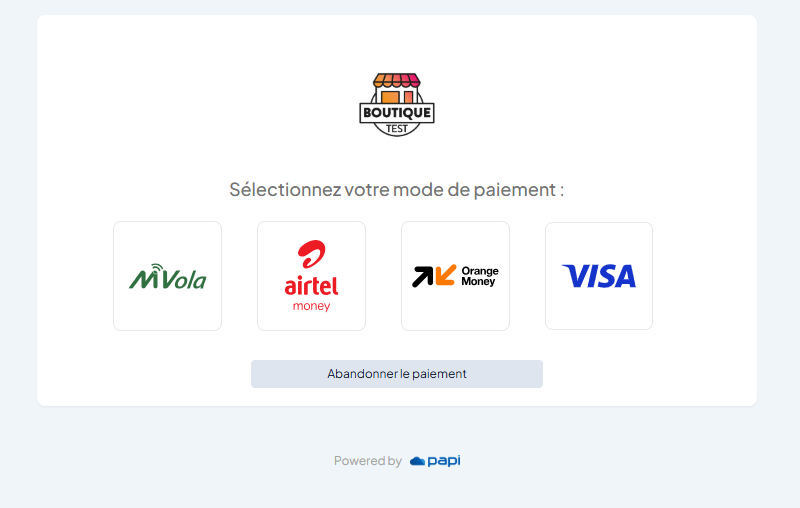
Once redirected, the customer completes the payment on Papi's secure page. After the transaction, they are sent back to your successUrl or failureUrl, and your notificationUrl receives the final status.
Option B — In-app pop-up window
Keep the customer on your site by opening the paymentLink in a popup window
and listening for a postMessage event from Papi when the payment is
confirmed.
1. Open the payment popup
Open the URL returned by the server in a new popup window. This must happen
inside a user-gesture handler (e.g. a form submit event) — otherwise the
browser will block the popup. We will use JavaScript to demonstrate, but the same logic applies in any frontend framework.
var paymentWindow = window.open(
    paymentLink,  // URL from the previous step
    'payment-form-window',  // reusable window name
    'width=500,height=700'  // popup dimensions
);
Keep a reference to paymentWindow — you will need it to verify that the
message comes from exactly this popup.
2. Listen for payment success
Once the popup is open, register a message listener on the parent window.
Papi will post { type: 'PAYMENT_STATUS' } when the payment is confirmed.
let PAPI_ORIGIN  = 'https://payment-form.papi.mg';

let paymentMessageHandler = null;
let paymentSuccess        = false;

function teardownPaymentMessageListener() {
    if (paymentMessageHandler) {
        window.removeEventListener('message', paymentMessageHandler);
        paymentMessageHandler = null;
    }
}

function onPaymentSuccessMessage () {
  // Your success handling logic here
}

function setupPaymentMessageListener() {
    teardownPaymentMessageListener();

    paymentMessageHandler = function (event) {
        // 1. Reject anything not from the Papi origin
        if (event.origin !== PAPI_ORIGIN) return;
        // 2. Reject anything not from the popup we opened
        if (event.source !== paymentWindow) return;
        // 3. Only react to PAYMENT_STATUS payloads
        if (!event.data || event.data.type !== 'PAYMENT_STATUS') return;
        // 4. Don't double-process
        if (paymentSuccess) return;

        paymentSuccess = true;
        teardownPaymentMessageListener();
        onPaymentSuccessMessage();
    };

    window.addEventListener('message', paymentMessageHandler);
}
Call setupPaymentMessageListener() immediately after window.open() so no
message is missed between the two calls:
paymentWindow = window.open(paymentLink, 'payment-form-window', 'width=500,height=700');
setupPaymentMessageListener();
3. Security guards
Three checks must all pass before acting on a message:
| Check | Why it matters |
|---|---|
event.origin === PAPI_ORIGIN | Rejects messages from any other domain. Must be an exact match — scheme + host, no trailing slash. |
event.source === paymentWindow | Rejects messages from unrelated iframes or tabs that happen to share the origin. |
event.data.type === 'PAYMENT_STATUS' | Ignores other postMessage traffic on the same page (analytics, widgets, etc.). |
4. Teardown
Always remove the listener once you're done — on success, on cancel, or when the user closes the popup:
// On success → handled automatically inside the listener above

// On cancel (user clicks "Annuler")
teardownPaymentMessageListener();
if (paymentWindow && !paymentWindow.closed) { paymentWindow.close(); }
paymentWindow = null;
Common pitfalls
| Symptom | Cause |
|---|---|
| Listener never fires | PAPI_ORIGIN mismatch (http vs https, trailing slash, port). |
| Listener fires for unrelated messages | Missing event.source === paymentWindow guard. |
| Redirect happens twice | Missing paymentSuccess flag or listener not torn down after first fire. |
event.source is null | Popup closed before sending the message — ensure the message is sent prior to window.close(). |
Retries and idempotency
Creating a payment link is idempotent on the reference, within your shop, for as long as the link is live (not expired, not paid, not disabled):
You POST again with the same reference… | Papi answers |
|---|---|
…same amount and currency, while the first link is live | 200 with the existing link: same paymentLink, same notificationToken. Description, URLs and payer details on the retry are ignored. |
…a different amount or currency, while the first link is live | 409 with code PAYMENT_LINK_CONFLICT. Wait for the link to expire, or use another reference. |
| …after the first link was paid, expired, or disabled | 200 with a new link. |
So a network retry or a double-submitted checkout can never leave two payable links for one order. Simultaneous requests are serialised: they all receive the same link.
{
  "error": {
    "code": "PAYMENT_LINK_CONFLICT",
    "message": "Un lien de paiement actif existe déjà pour la référence ORDER-123 avec un montant ou une devise différents. Attendez son expiration ou utilisez une autre référence."
  }
}
Links created by hand from the dashboard are outside this rule: they are neither returned nor a reason to refuse.
Detailed idempotency rules, retry advice and error codes: Payment link creation API.
Reading a payment link back
Anything you created with POST /payment-links can be read back by your merchant reference. This is how you recover the outcome of a payment when the notification never reached you, and how you check where a link stands before re-issuing one.
All fields, status rules, error codes and examples: Get payment link status API.
Endpoint
GET https://app.papi.mg/engine/api/payment-links/{merchantPaymentReference}
{merchantPaymentReference} is your merchant reference: the reference field you sent when creating the link, the same value returned as merchantPaymentReference in responses and notifications. It is not Papi's payment reference. It is resolved inside the shop your Token belongs to. If several links were created under the same reference, a paid one is returned if any exists, whatever its age; otherwise the most recent one.
Headers
{
  "Token": "<YOUR_API_KEY>"
}
Response example
{
  "data": {
    "linkStatus": "PAID",
    "paymentStatus": "SUCCESS",
    "paymentMethod": "MVOLA",
    "currency": "MGA",
    "displayCurrency": "MGA",
    "amount": 15000.0,
    "clientName": "Client Name",
    "description": "Payment for Order #123",
    "merchantPaymentReference": "ORDER-123",
    "papiPaymentReference": "c1f4a5b0-6f5e-4e1b-9f0e-2b7d8a9c3d21",
    "notificationToken": "xyz789",
    "message": null,
    "payerEmail": "customer@example.com",
    "payerPhone": "+261340000000",
    "paymentLink": "https://payment-form.papi.mg/yourshop/payments/eyJhbGciOiJIUzI1NiJ9...",
    "shortLink": "https://link.papi.mg/8NW7R",
    "linkCreationDateTime": 1788065989011,
    "linkExpirationDateTime": 1788281989011,
    "isTestMode": false
  }
}
Response fields
The fields share their names and meaning with the notification body, with one exception: Papi's reference is called papiPaymentReference here (it is paymentReference in the notification) so it can never be confused with your merchantPaymentReference.
| Field | Type | Description |
|---|---|---|
linkStatus | string | Where the link stands: ACTIVE (can still be paid), EXPIRED, PAID, or DISABLED. PAID wins over DISABLED and EXPIRED. |
paymentStatus | string | Outcome of the payment made through the link: SUCCESS, PENDING, or FAILED — the same values as the notification. null while nobody has attempted to pay. |
paymentMethod | string | Provider the payer went through (MVOLA, AIRTEL_MONEY, ORANGE_MONEY, BRED). null until a payment attempt exists. |
currency | string | Currency code (always MGA). |
displayCurrency | string | Currency shown to the payer. |
amount | number | Amount of the link. |
clientName | string | Customer's name as provided. |
description | string | The description you sent. |
merchantPaymentReference | string | Your reference from the creation request. |
papiPaymentReference | string | Papi's reference for the payment attempt — the notification's paymentReference. null until a payment attempt exists. |
notificationToken | string | The token returned when the link was created. |
message | string | Failure reason of the payment attempt, when there is one. |
payerEmail | string | Customer's email (if provided). |
payerPhone | string | Customer's phone number (if provided). |
paymentLink | string | The payment URL, as returned at creation. |
shortLink | string | Short form of the payment URL, when one was generated. |
linkCreationDateTime | integer | Creation time, epoch milliseconds. |
linkExpirationDateTime | integer | Expiry time, epoch milliseconds. |
isTestMode | boolean | Whether the link was flagged as a test. |
How to read the two statuses together
linkStatus | paymentStatus | Meaning |
|---|---|---|
ACTIVE | null | Nobody has tried to pay yet. |
ACTIVE | FAILED | The last attempt was declined or abandoned; the payer can still retry on the same link. |
ACTIVE | PENDING | An attempt is in progress at the provider. Check again shortly. |
PAID | SUCCESS | The payment went through. Confirm the order. |
EXPIRED | null / FAILED | The link ran out before a successful payment. Create a new one. |
DISABLED | null / FAILED | The link was switched off from the dashboard. |
Errors
| Status | Meaning |
|---|---|
401 | Token header missing or unknown. |
404 | No link with this reference in your shop. A reference used by another shop is also a 404. |
Test Mode
Papi offers two ways to test your integration:
1. isTestMode flag in the request
- Set
"isTestMode": truein the request body. - The transaction is marked as a test in your dashboard, but real money is still moved.
- Useful for end‑to‑end testing with real providers (except for mobile money, which does not support non‑real test transactions).
2. Application Test Mode (cards only)
- In your shop's settings inside the dashboard, enable Test Mode.
- Use the following test card details:
- Card number:
4000 0000 0000 5126 - Expiry date:
01/2028 - CVV:
123
- Card number:
- This simulates a card payment without moving real funds.
Example Workflow Summary
- Obtain your API Key from the dashboard (
Avatar icon → Boutiques → select shop → Developer tab). - Create a payment link by sending a
POSTrequest with the required fields. Retries are safe: the samereferencewith the same amount returns the same link. - Redirect the customer to the returned
paymentLink. - Receive a notification on your
notificationUrlwhen the payment status changes. - Verify the notification: check the
X-Papi-Signatureheader first, thenmerchantPaymentReferenceandnotificationToken. See Securing notifications (callbacks). - Update your records and inform the customer.
- Read the link back with
GET /engine/api/payment-links/{merchantPaymentReference}whenever a notification is missing or you need to double-check an outcome.
By following these steps, you can securely accept online payments with Papi. Always test thoroughly using test mode before going live.